
Guide to the Lady Margaret School Clubs Tool
👋 We're lucky to have so many free clubs available at LMS! It can be tricky to navigate them all, so I put together this site and short guide to help you use it. The mini site's designed to make finding clubs and printing a timetable of your available and chosen ones super easy!
Step 1: Filter by Year Group
The first and most important step is to select your year group. You'll see a dropdown menu right at the top of the page. Once you choose your year, the page will automatically refresh to show only the clubs available. This is key, as it enables the rest of the site's features, including the ability to select and print clubs.
Step 2: Explore and Filter Clubs
Now that you've narrowed it down, you can start exploring!
- Search Bar: Looking for a specific club? Just start typing the club name into the search bar.
- Filter Panel: For more detailed searching, click the red "Filters" button on the right. This opens a panel with a few great options:
- Day: Find clubs that run on a specific day of the week, like "Monday" or "Friday".
- When: Filter by "Lunchtime," "After School," or "Before School" to fit your schedule.
- Department: Want to see only sports clubs or music clubs? Use the "Department" dropdown to filter by categories like "Music" or "PE."
- Club Name: You can also scroll through a list to see all the club names at a glance.
Step 3: Select & Print Your Timetable 🖨️
Once you've filtered the list and found a few clubs you're interested in, you can highlight them for easy reference.
- Make a Selection: See the small checkbox on the club cards? Check this box to add the club to your personal selection.
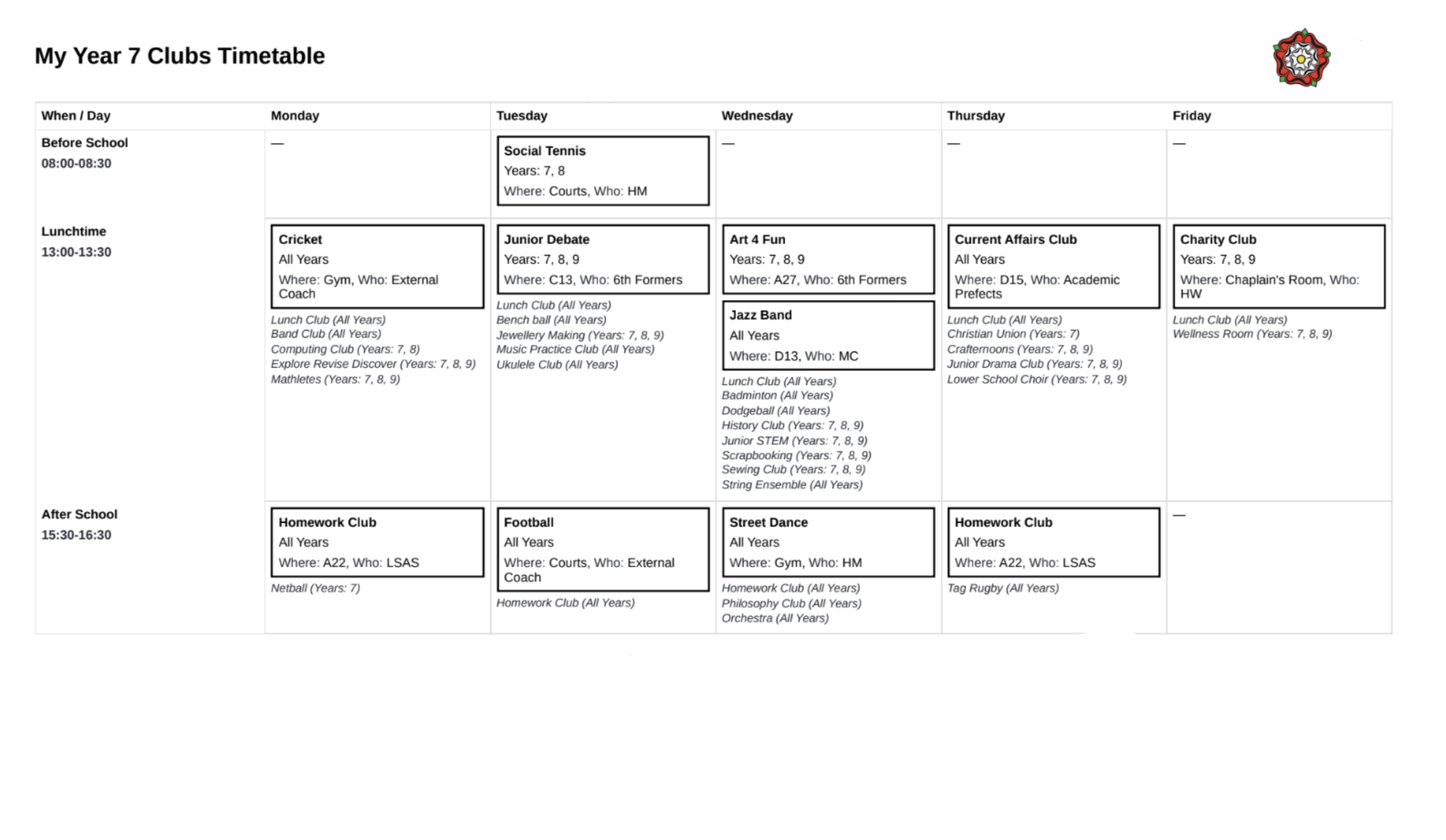
- Print Timetable: After selecting a year group, a new button will appear: "Print My Timetable." Click this to generate a clean, easy-to-read PDF or send it to your printer. The timetable includes:
- All the clubs available to your year group.
- The clubs you selected will be clearly highlighted with extra details like the location and the staff member in charge.
A Few Extra Tips
- No Results? If your filters are too specific and you don't see any clubs, click “Clear All Filters” at the bottom of the filter panel to reset.
- Overwhelmed? First, select your year group to see your available clubs. Then, apply filters, such as viewing one day’s clubs or after school clubs only. After you've made your selections, you can use the “Print my Scheldue” button to see your chosen clubs highlighted in chronological order amongst your other options.
- Double booked? If you select clubs that occur at the same time, the site will alert you to help avoid scheduling conflict. However, you can still select favorite clubs in the same time slot - your timetable will display them side-by-side so you can choose which to go to.
- Start over? If you want to start afresh with your timetable selection use the “Deselect All Clubs” button above the club cards.
- Printing Problems? Ensure A4 paper is selected, choose page orientation (landscape for fewer clubs, portrait for more). If just over a page, adjust 'scale' down to fit. For best results, or if it's not working, use Chrome browser.
I hope this makes the club selection process even smoother!
PE clubs kit - helpful tips & requests from LMS
- 👟 You can come to school in PE kit for morning sports clubs. Changed into uniform either before registration or at break time.
- 🦘 School jumpers are NOT to be worn with PE kit.
- 🏃♀️ For 13:00 lunchtime clubs get changed at 12:45 so the clubs can start on time.
- 🔔 For after-school PE clubs get changed during lunch so you’re ready to start when the final bell rings!